
Copy/Paste from Google Earth to AutoCAD: Placemark, Path, Polygon
If you’ve ever Googled “KMZ to DWG” and ended up with 14 open tabs and one mild existential crisis… we got you covered.
We’ve all been there.
A client sent a site boundary the night before a meeting. You’re scoping a corridor and just need a rough alignment to start, and want to sanity-check a location before you waste an afternoon drawing the wrong thing.
Somehow, the internet’s answer is to download three converters, sacrifice a goat, and hope for the best. But it doesn’t have to be that complicated.
The fastest way to get KML/KMZ data into AutoCAD is not a converter: it’s Plex-Earth. With our copy/paste workflow, you can pull placemarks, paths, and polygons from Google Earth into CAD in minutes.
Before we jump into the exact steps, let’s make sure this is actually the right approach for your workflow.
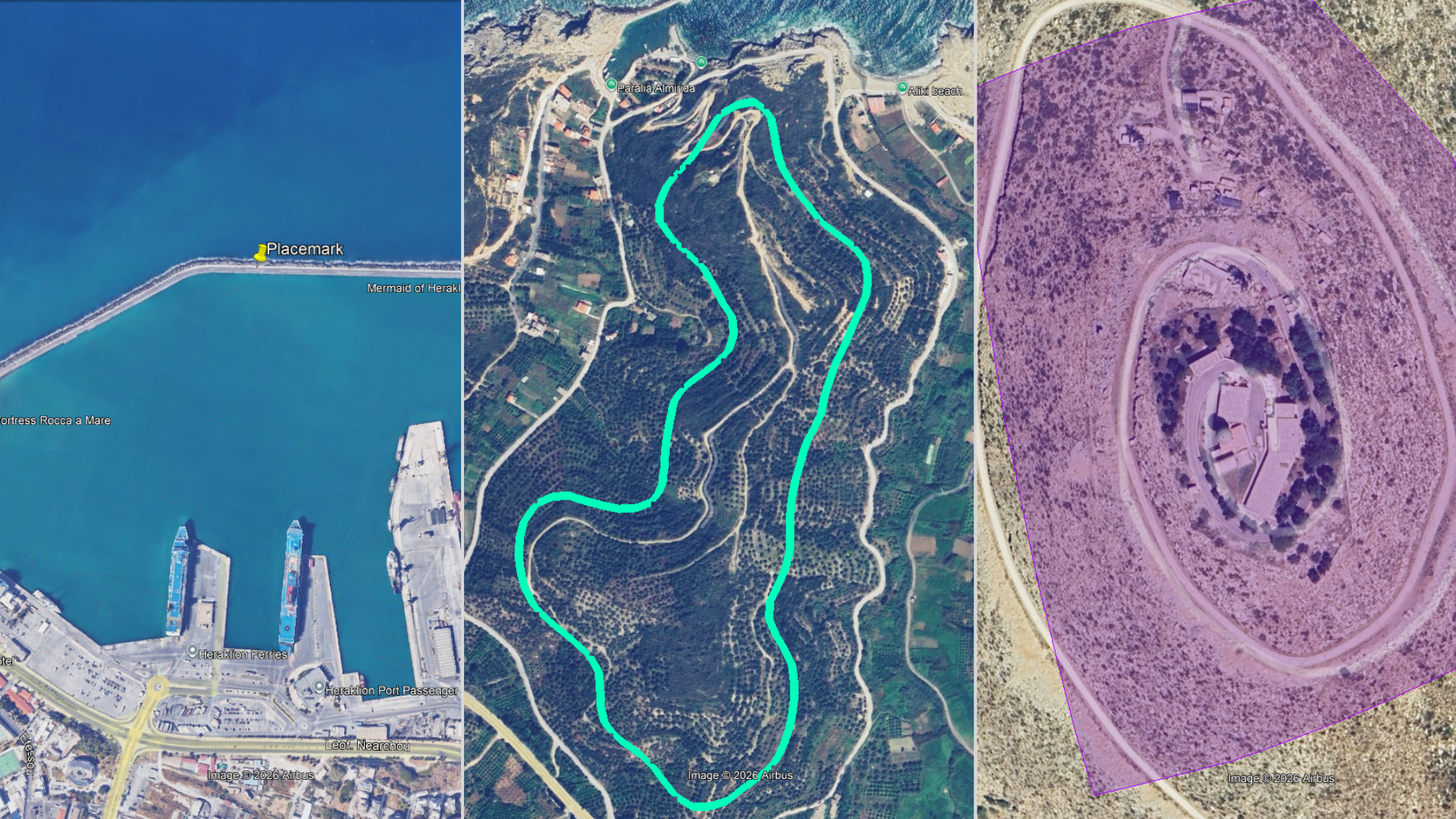
Google Earth Elements (Placemark, Path, Polygon)
When copy/paste form Google Earth is the right approach
This workflow makes sense in the early stages: feasibility, concept layouts, and internal reviews. It gets boundaries and routes into CAD in minutes, but it shouldn’t be treated as your final, authoritative dataset.
When to use it:
You need context fast. A boundary, a route, or a handful of points. Just enough to start drawing, measuring, and discussing.
You’re in the early stages of work. Scoping, feasibility, concept layouts, internal review, and plan-B conversations.
You need speed, not precision. You want solid alignment you can sanity-check, without spending your afternoon inside converter roulette.
When not to use it:
Your deliverable demands strict coordinate system control. Unless your drawing is already georeferenced, and it must land exactly in a controlled CRS, treat this as a shortcut, not the main road.
You need attribute-rich GIS data or large datasets. Copy/paste is great for shapes — not for hauling a database worth of features and metadata.
You’re relying on elevations as authoritative. If Z-values are critical, use a workflow designed for elevation fidelity (and validate against the right source).
Once you’ve decided copy/paste is the right approach, it’s worth looking at the building blocks themselves—because what you copy in Google Earth controls what you get in CAD.
Placemark, Path, Polygon: What You're Actually Moving from Google Earth to CAD
Most KML and KMZ files are combinations of a few basic element types. The element you select in Google Earth, whether it is a placemark, path, polygon, or a folder, controls what appears in CAD, how it behaves, and how much cleanup you will need afterward.
Placemark = point
A single location marker. Great for “put a pin here” moments: entrances, inspection points, corners you want to keep an eye out, or just good old “start here” markers in a review.
Less-obvious (and useful): if you paste a placemark into an empty, non-georeferenced drawing, Plex-Earth can use that to help you get a georeferenced starting point instead of guessing where “0,0” should be.
Common misconception: a placemark won’t magically become an outline. If you need shape/extent, you’re looking for a polygon.
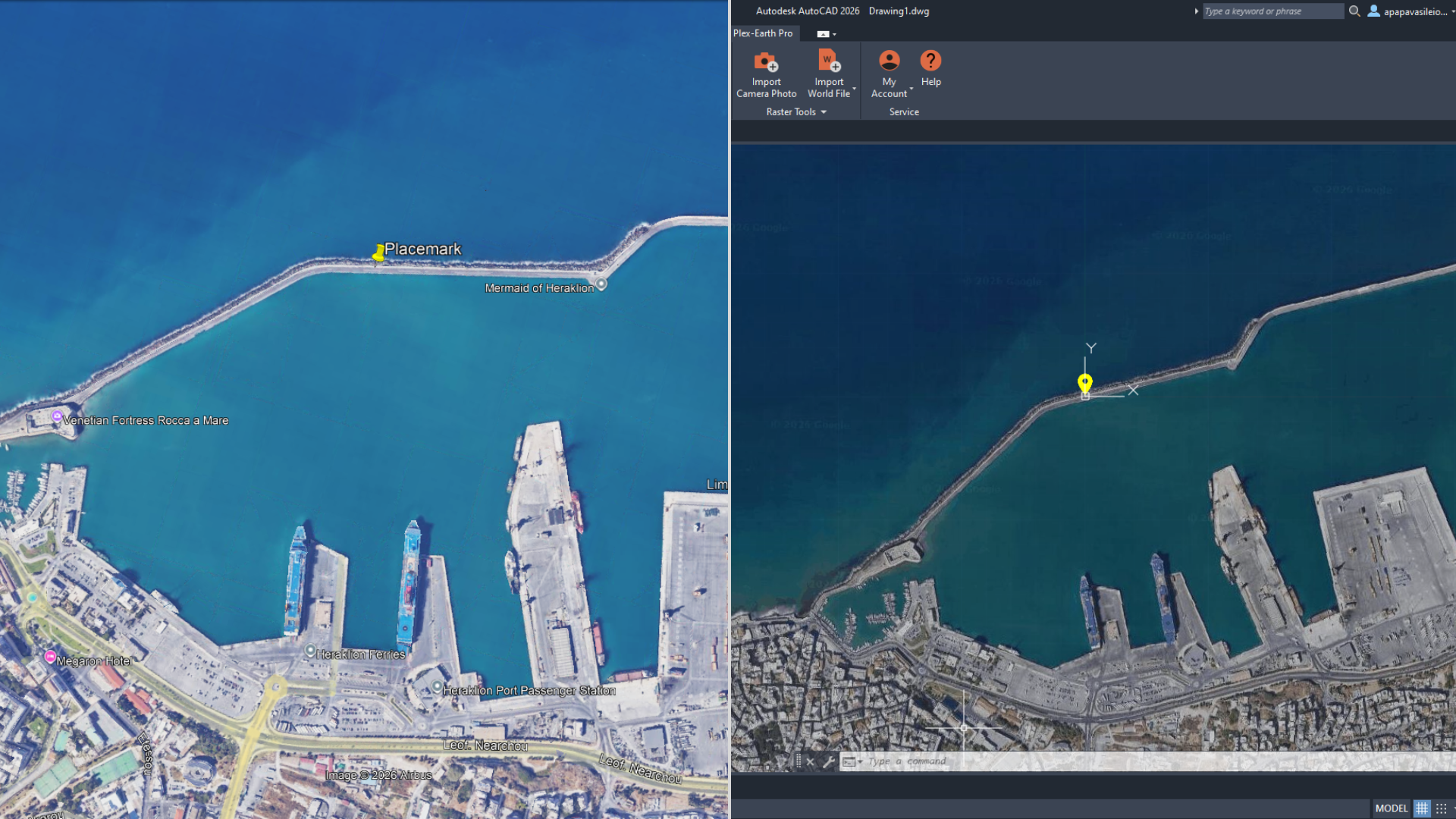
KML placemark pasted into AutoCAD using Plex-Earth
Path = line
Best for quick routes and alignments: corridors, roads, pipeline “rough path,” access tracks, and really anything that’s essentially “a line through space.”
Less-mentioned gotcha: paths are often drawn for visual clarity in Google Earth, not for CAD cleanliness. Expect extra vertices and little wobbles that you’ll want to simplify/clean once pasted (especially if you plan to offset, fillet, or turn it into a proper alignment).
Common misconception: people use a path when they really need an area. If it’s meant to represent a site boundary, use a polygon.
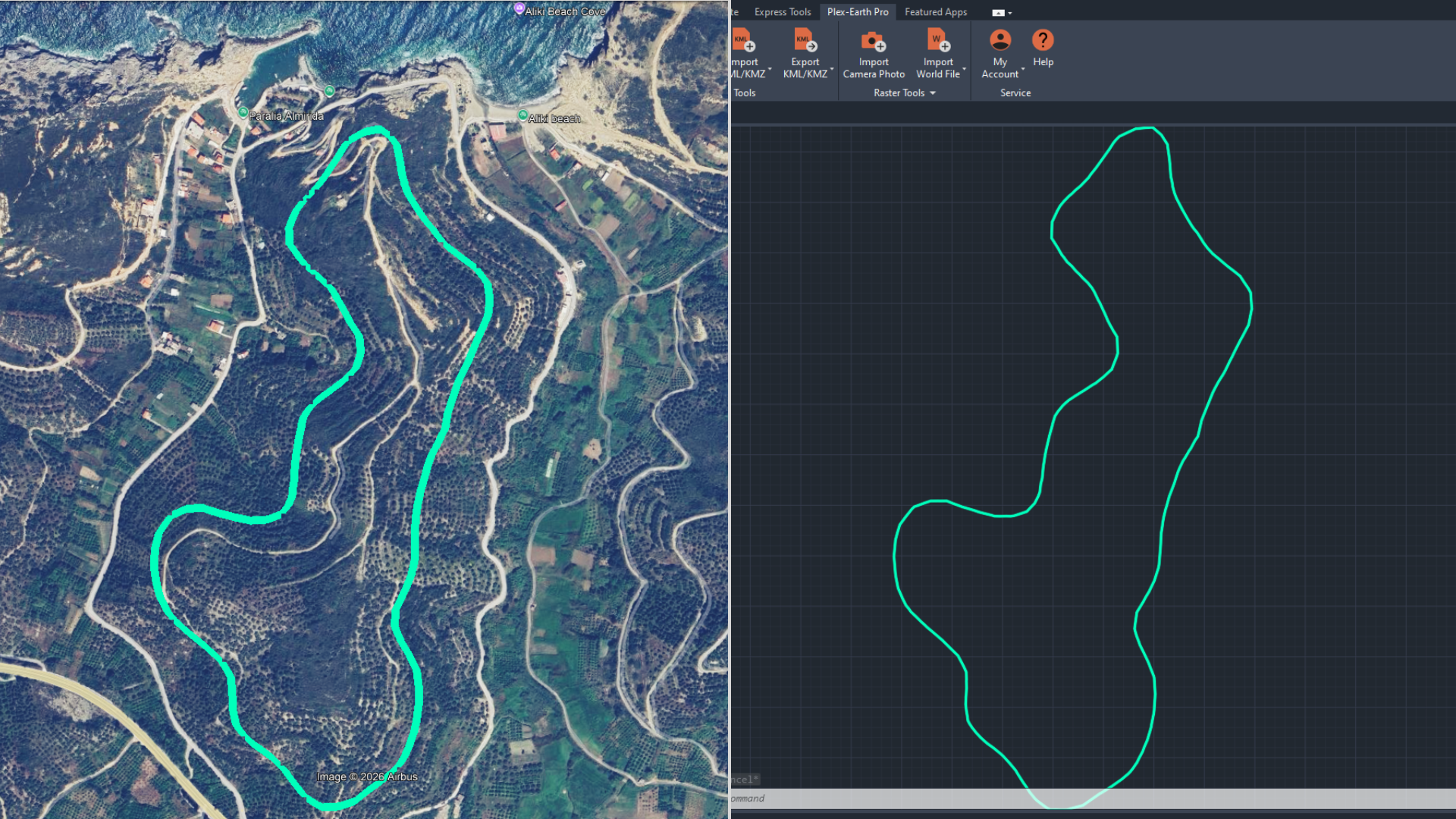
KML path pasted into AutoCAD using Plex-Earth
Polygon = area/boundary
This is the usual “site boundary” or “project area” people send in a KMZ, and it’s perfect for scoping, feasibility, and early layout work.
One practical note: not all KML layers keep their original layer properties when pasted. If you care how it lands in CAD, set up your CAD layer first and paste onto that enabled layer.
Common misconception: “closed shape” doesn’t mean “clean geometry.” Treat it like a starting outline until validated.
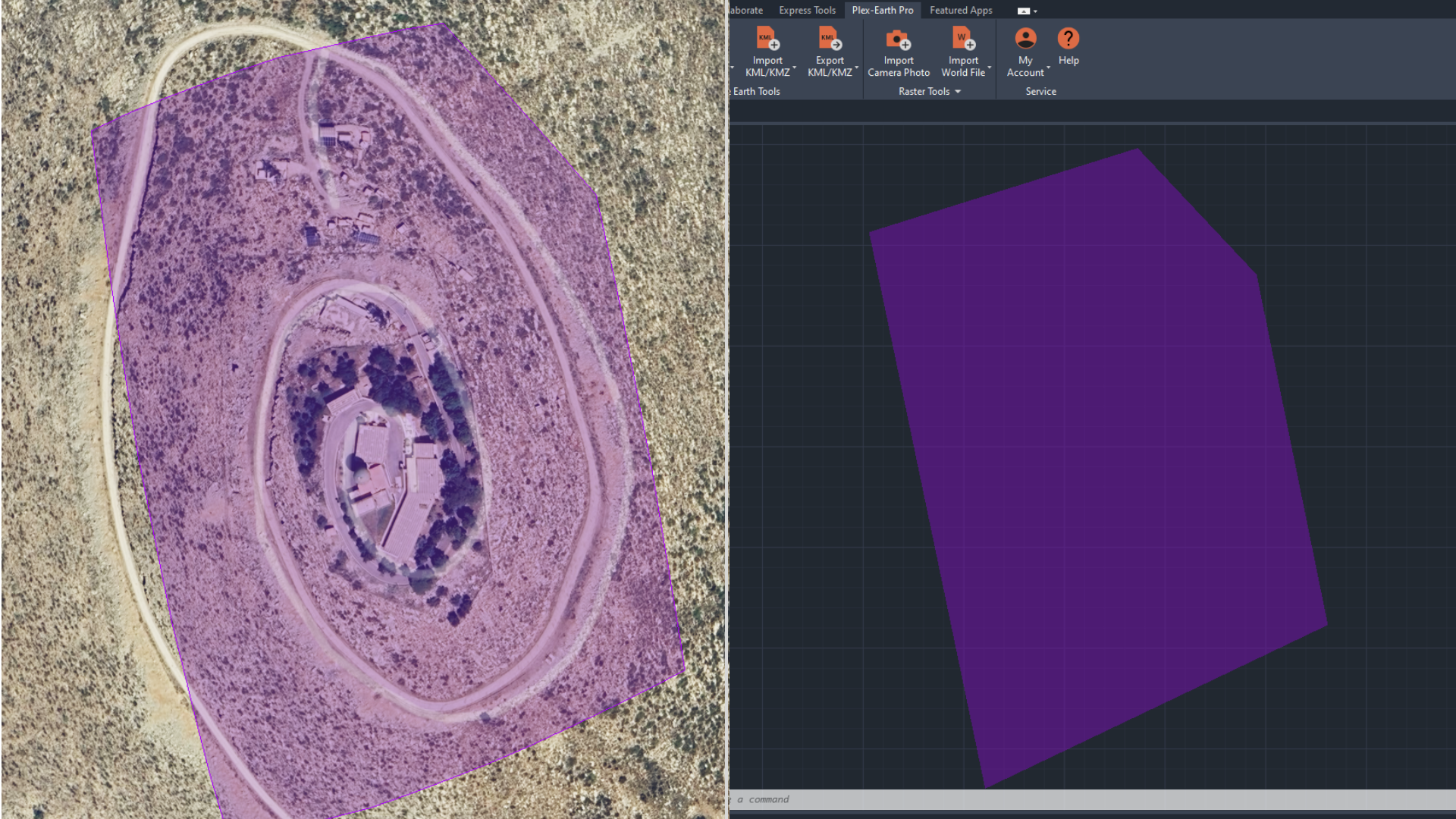
KML polygon pasted into AutoCAD using Plex-Earth
Folder / layer = collection
This is a container that can include multiple placemarks, paths, and polygons. Plex-Earth supports copying grouped objects from a folder, which is a big time-saver, but it also means you can accidentally paste more than you intended if the folder is messy.
Also worth knowing: copy/paste is the only way Plex-Earth can import elements from Google Earth sources that connect dynamically, such as Network Links.
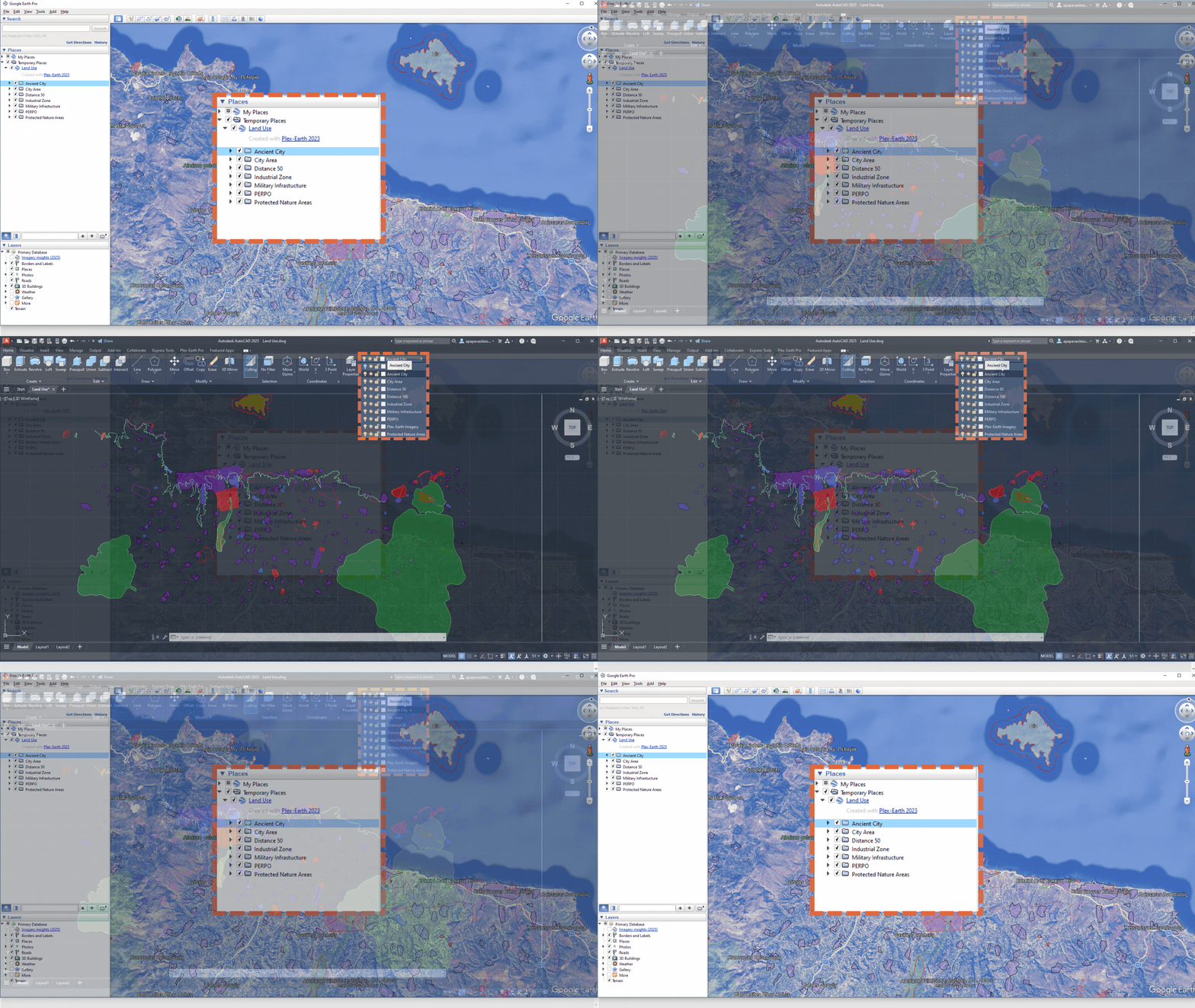
KML folder pasted into AutoCAD with Plex-Earth
Quick workflow overview
If you only remember one thing from this post, make it this: the workflow is simple, and the sanity check is non-negotiable.
[STEP 1] Identify the elements in Google Earth
Start with a single placemark, path, or polygon if you can. Copying a whole folder works, but it is also how you end up pasting three “final” versions and one accidental doodle from 2019.
[STEP 2] Copy the element
Keep it simple. Copy only what you need for this round of work.
[STEP 3 ]Paste into CAD using Plex-Earth’s paste workflow
You are not “importing a dataset” here. You are bringing in a reference shape so you can start planning.
[STEP 4] Sanity-check alignment against a basemap
Do a quick visual check right away. If it looks off, fix the setup now, not after you have built half a concept on top of it.
[STEP 5] Convert and organize in CAD
Put it on the right layer, rename things so they make sense, and clean up geometry if needed. The goal is “usable in CAD,” not “perfect on day one.”
Want the exact step-by-step clicks?
Watch the video below, or check out the Plex-Earth support guide for the detailed workflow (copy in Google Earth, paste in CAD, plus options and edge cases).
The 2-Minute Sanity Check to Avoid KMZ Misalignment in AutoCAD (and other CAD tools)
At this point, you’ll feel the urge to celebrate because “it’s in CAD.” Don’t.
Give it two minutes to sanity-check, because this is the exact moment people accidentally build an entire concept on the wrong location.
Overlay it on imagery/basemap in CAD and confirm you’re in the right place.
Measure one known distance (road width, parcel edge, building length) to catch scale issues fast.
Confirm orientation with a quick northing/easting check (no unexpected rotation or mirroring).
Lock the reference layer and keep the original KMZ untouched as the source reference.
You’re looking for obvious misalignment, not perfection.
First, check that the geometry is in the right place relative to something you recognize on the basemap or imagery. If the boundary sits on the wrong parcel, the route cuts through buildings, or everything looks shifted by a block or two, stop there and fix it before you build on top of it.
Next, sanity-check the scale with one measurement you trust (road width, parcel edge, building length). If it’s off by an order of magnitude, something is wrong.
Finally, treat the pasted result as a reference layer: keep it separate, lock it, and keep the original KMZ untouched so you can always verify what came from the source and what you changed in CAD.
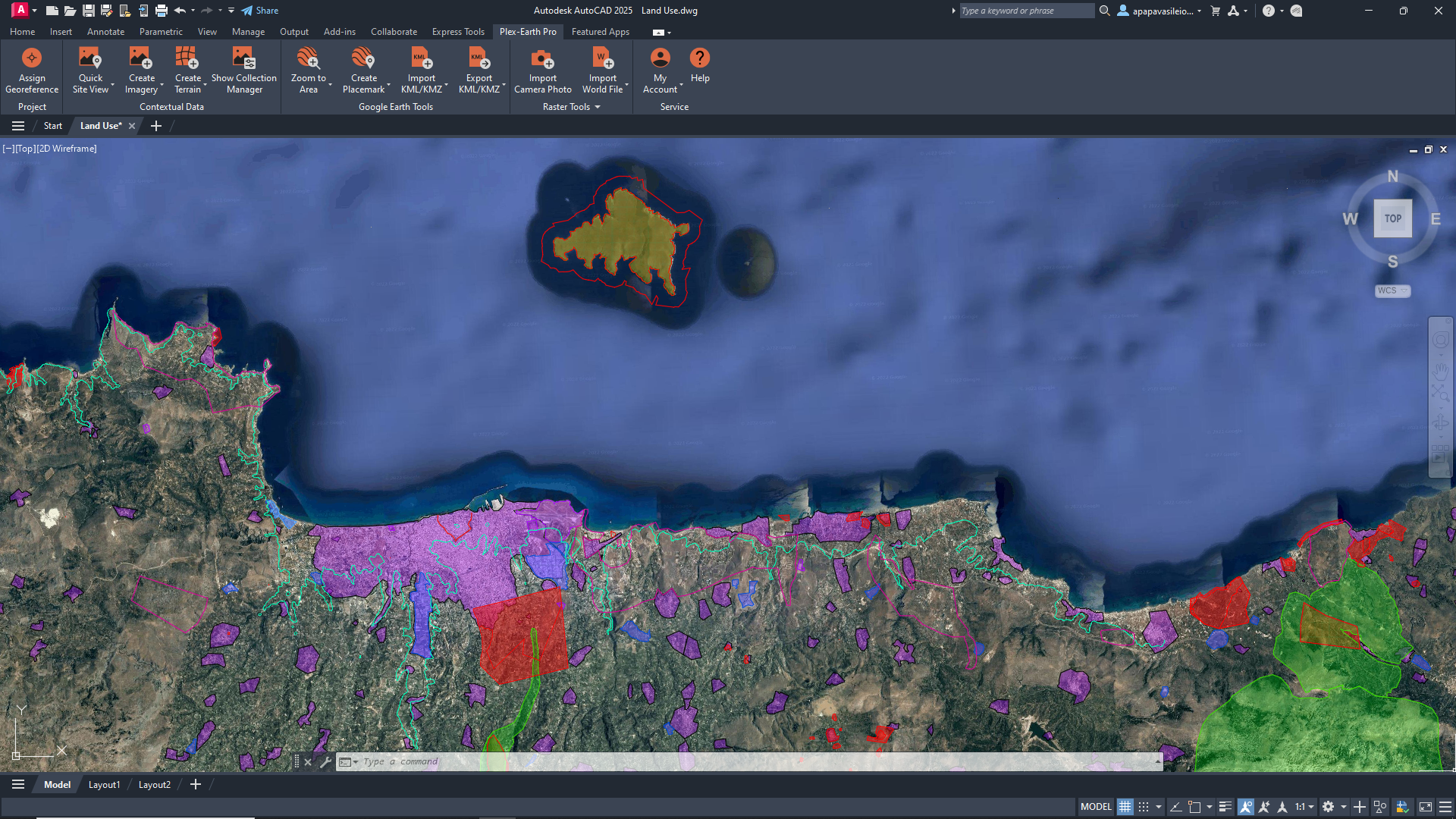
Paster KML element along with Plex-Earth’s Imagery Mosaic
Imagery source: Google Maps
What this looks like in practice
Ok, you’ve pasted it, verified it, and locked it. Now let’s put this into more context with a few real examples.
Solar concept layout from a client KMZ (boundary + constraints)
A developer sends a KMZ with a site boundary and a couple of no-go polygons marked “trees” and “wet area.” The ask is not the final design. The ask is “can we fit a rough layout here and what are the obvious problems?”
You copy the boundary and the constraint polygons in Google Earth, paste them into CAD with Plex-Earth, then sanity-check against imagery. Once it lines up, you immediately have something you can work with: a clean reference boundary on its own locked layer, constraints on a separate layer, and a base to start sketching row blocks, access paths, and rough setbacks.
The KMZ stays untouched as the source, and your CAD geometry stays clearly “concept,” not “survey.”
Utility corridor review when the alignment lives in Google Earth
Your team gets a KMZ showing a proposed corridor path that someone traced in Google Earth. You are not ready to build an alignment. You are trying to answer a simpler question: “does this corridor cross anything we should worry about?”
You copy the path, paste it into CAD, and overlay it on basemap/imagery. In minutes, you can mark where it crosses roads, streams, and dense urban areas, and you can quickly sketch alternative segments where the original trace obviously does something silly.
Later, when you get authoritative GIS or survey data, you can replace the reference line and keep the decisions you made.
Civil pre-check before you waste a day drafting the wrong site
A stakeholder sends a KMZ and says “this is the project area.” You have seen this movie. Sometimes it is the wrong parcel. Sometimes it is the right parcel but the wrong edge. Sometimes it is from an old version.
So you copy/paste the polygon into CAD, sanity-check against imagery, and measure one known dimension. If it is wrong, you catch it in five minutes and ask the right question before anyone invests time.
If it is right, you move forward with confidence and start your early layouts.
To wrap things up
Next time you’re deep in the “KMZ to DWG” rabbit hole, here’s the reset: you probably do not need a perfect conversion. You need the KMZ in AutoCAD so you can see it in context and keep the project moving.
Copy what you need from Google Earth, paste it into CAD with Plex-Earth, and do the quick sanity check before you build on top of it. Then treat it like a reference layer, because that’s what it is at this stage. Lock it, label it, keep the original KMZ untouched, and get on with planning.
Voila! Happy drawing.
